








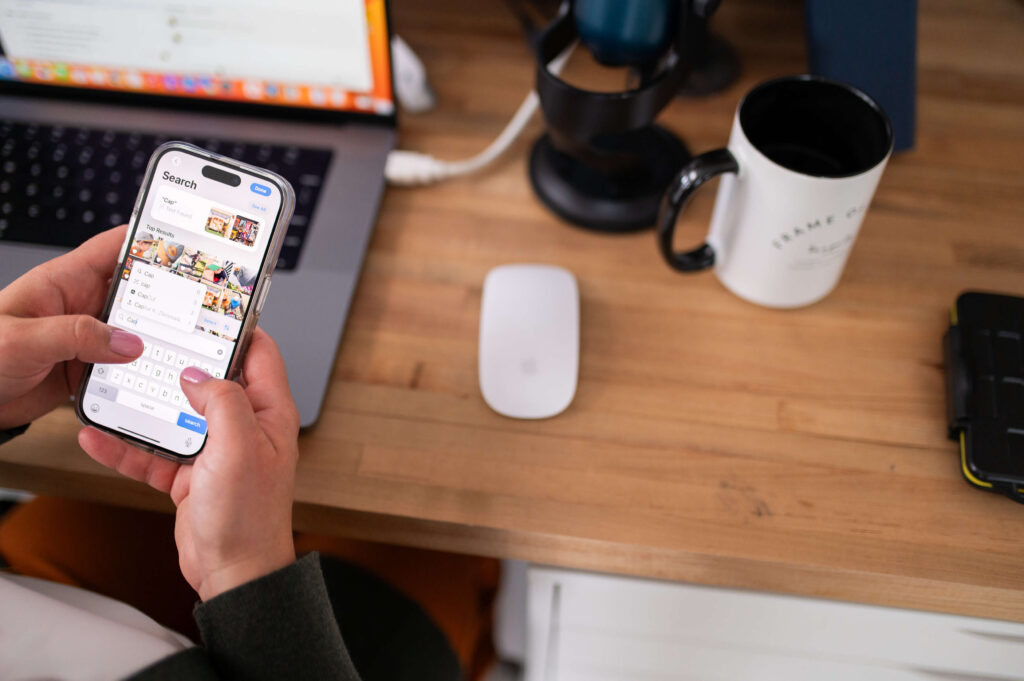
You’re just trying to take a cute photo and your phone runs out of storage.
Again.
So you go to Settings and you see a friendly little button that says:
“Free Up Storage.”
You tap it — because who has time to think twice about a button that’s clearly trying to help you?
My Bestie Advice?
PAUSE!
That button is not always your friend.
There are a few things you need to know first before you trust the system to “just free up space” for you.
I’m covering it all here – with a free workbook to help you check your system before you lose those photos that matter so much to you!

“Free up storage” does not mean the same thing on an iPhone as it does with Google Photos.
And if you don’t know which one you’re dealing with, you could be deleting the only copy of a photo you thought was safe.

What “Free Up Storage” actually means on iPhone
On an iPhone
This usually means turning on “Optimize iPhone Storage” under Settings > Photos.
What it actually does: it keeps a smaller, lower-res version of your photo on your phone and moves the full-resolution original to iCloud.
That’s fine — if your iCloud backup is actually working.
But if:
- Your iCloud storage is full,
- You’re not signed into the right account, or
- Your sync stalled out three months ago and you never noticed (this happens all the time)
- You’re using iCloud as your only source of “backup” for your photos*
*iCloud is not a backup.
It simply syncs your photos between apple devices.
Let me say this another way, that hopefully sinks in for you:
If you delete a photo on your iPhone –> It deletes off iCloud
That photo is now gone (after 30 days – it’s recoverable until then in your “recently deleted” album)
When you hit “optimize iPhone Storage, your phone just quietly deleted the only good copy and kept a blurry stand-in that you’ll never realize until it’s too late.
What “Free Up Storage” means in Google Photos
On Google Photos
“Free up device storage” works differently.
It removes the copy sitting on your phone, but only for photos it can confirm are already backed up to Google Photos.
In theory, that’s the safer version of this button.
In practice — same problem.
- If backup is paused
- If you’re over your Google storage limit,
- If it’s backing up to an account you don’t check anymore (we’ve all got one), or
- You don’t have another source of backup for your photos, you will effectively just be saving space on your phone by deleting your second copy. Leaving you vulnerable if anything ever happens to your google photos account.
Already backed up” might not mean what you think it means.
**If you’re an iPhone User who uses Google Photos as a Backup**
This is a super important thing we need to talk about.
1- Bravo for having a backup of your iPhone photos beyond just iCloud!
2- Don’t “free up space” on Google Photos App thinking it will save space on your phone.
While, YES it is true that your photos will be deleted off your phone, it is only those photos that are “backed up” on google photos. “Freeing Up Space” in the google photos app will delete those photos off both your iPhone AND your iCloud… so now, your only source for those photos will be from Google Photos.
Do you see the conundrum?
Only one backup and no photo on your phone device.
No backup = no bueno.
Industry standard (for photo organizers) is to have at least 3 copies of your photos. 2 different sources, and at least 1 off site.
It’s called the 3-2-1 method for backup
And for you, you’re down to 1 when you use that “Free Up Space Button.”
That is the real risk nobody tells you about

But also… both systems of advice are built on the same shaky assumption: that your backup is actually working.
Up to date, in real time.
Neither one is going to stop you and say “hey, are you sure?” before it deletes something.
It just trusts that you checked.
Most of us never checked.
This is not about panic — it’s about 30 seconds of looking before you tap that button.
- 🤳Your kiddos’ first steps
- 🤳the photo of your mom laughing that you didn’t know you’d want someday
- 🤳the mundane Tuesday afternoon that turns out to be a golden moment
None of that is worth losing to a storage prompt you tapped without thinking.
Before you free up a single megabyte:
✓ Confirm that you actually have a full backup system in place (i.e. Amazon Photos in addition to iCloud and/or Google Photos)
✓ Check that backup is “Up to Date”— not “paused” or “syncing”
✓ Know your real numbers: how many photos, how much storage, how much is actually backed up vs. just sitting on your device
✓ Only then, free up storage — knowing exactly what you’re freeing and what’s protected
That’s the whole system
It’s not complicated, it just requires actually looking instead of assuming.
I built this checklist with the steps to take on both an iphone or android to see that your iCloud, Google Photos, and/or Amazon Photos are working as you intend to backup your images.
The Camera Roll Checklist is a ten page workbook that will walk you through:
- checking your numbers,
- confirming your backup is real, and
- locking it in
- plus a bonus page on setting up your legacy action plan in Apple and Google

If you want to dive deeper into Backup – you’ll also love…


+ show Comments
- Hide Comments
add a comment